This tutorial evolved from a conversation in broken Spanish (non-existent, it was all using Google) on the Speckle Help chat with Damian Díaz from Argentina. Thanks, Damian, for raising a great question about how to manage version metadata across federated models in PowerBI.
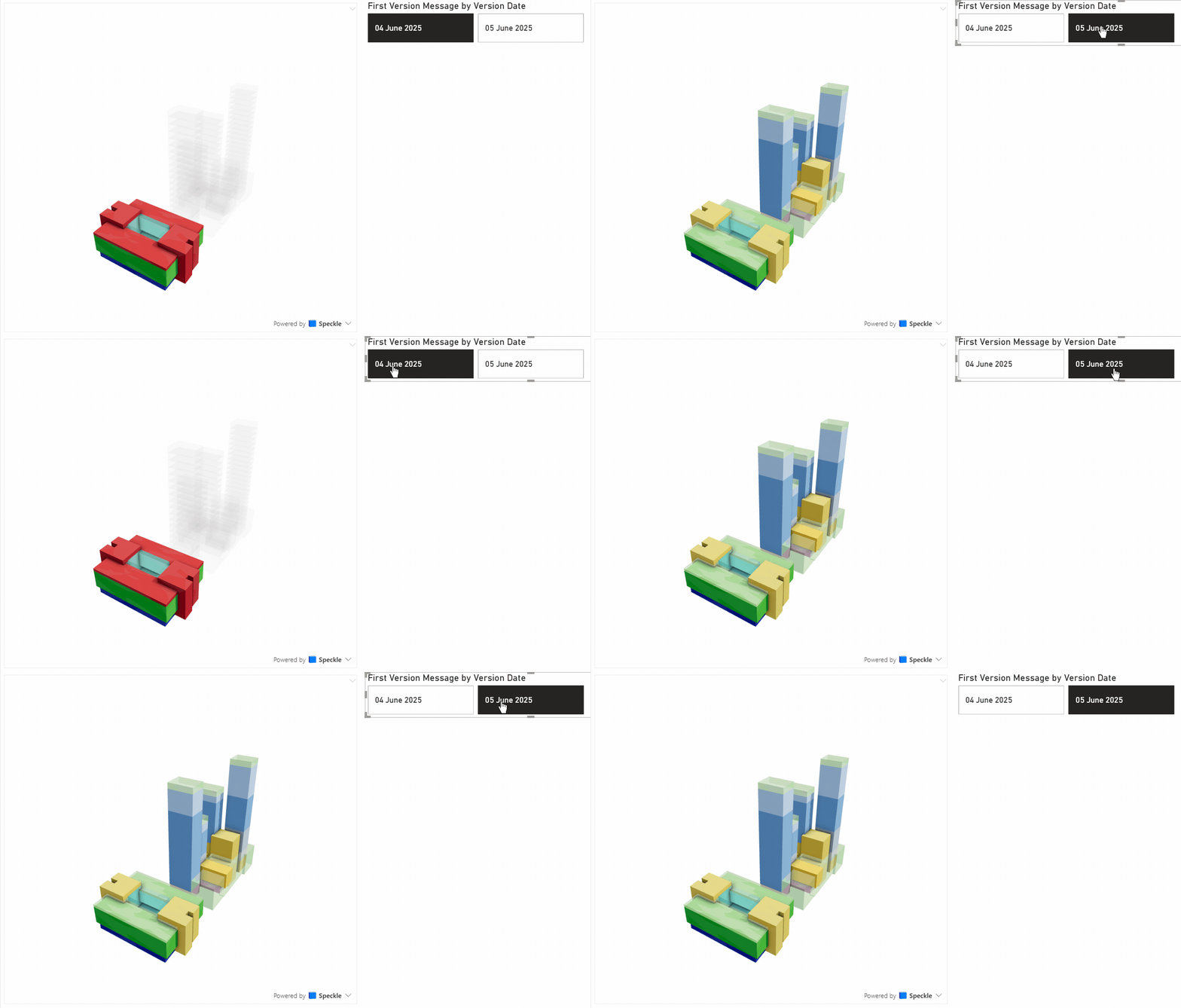
This guide shows how to:
- Load individual versions of a model
- Federate them using
Speckle.Models.Federatehelper function, recently added. - Fetch version metadata via GraphQL
- Enable filtering by version in the 3D visual
Note: This tutorial mentions Power BI’s Model View, which is the relationships diagram and not referring to the 3D model viewer.
Step 1: Load Individual Versions
For simplicity, each model version I want to include has its query. Here’s an example:
let
    versionUrl = "https://app.speckle.systems/projects/3b81e5731b/models/684f61a8e2@645c8a8c0a",
    parsedUrl = Speckle.Parser(versionUrl),
    versionId = parsedUrl[versionId],
    Source = Speckle.GetByUrl(versionUrl),
    #"June 4" = Table.AddColumn(Source, "versionId", each versionId)
in
    #"June 4"
This is slightly more involved than simply GetByUrl but all it is doing is adding the specific versionId that you can get if you copy the link from the Versions view on app.speckle.systems.
Repeat this for additional versions (like June 5) and name the queries accordingly.
Step 2: Create a Federated Dataset
Use the Speckle.Models.Federate helper to combine multiple versions into one unified table:
let
    Source = Speckle.Models.Federate({#"June 4", #"June 5"}, false)
in
    Source
This query returns a flat table of all objects, automatically tagged with their versionId.
Rename this query to Federation.
Step 3: Fetch Version Metadata
Use GraphQL to query metadata (date and message) for each version in the model:
let
    modelUrl = BaseUrl,
    parsedUrl = Speckle.Parser(BaseUrl),
    projectId = parsedUrl[projectId],
    modelId = parsedUrl[modelId],

    versionsQuery = "query GetModelVersionMetadata($projectId: String!, $modelId: String!) {
        project(id: $projectId) {
            model(id: $modelId) {
                versions {
                    items {
                        id
                        createdAt
                        message
                    }
                }
            }
        }
    }",

    versionMetadataVariables = [
        projectId = projectId,
        modelId = modelId
    ],

    versionMetadataResponse = Speckle.Api.Fetch(parsedUrl[baseUrl], versionsQuery, versionMetadataVariables),
    versions = versionMetadataResponse[project][model][versions],
    metadataTable = Table.ExpandRecordColumn(
        Table.ExpandListColumn(
            Record.ToTable(versions), "Value"
        ),
        "Value", {"id", "createdAt", "message"},
        {"Version ID", "Version Date", "Version Message"}
    ),
    cleaned = Table.TransformColumns(metadataTable, {
        {"Version Date", each Date.From(DateTimeZone.From(_)), type date}
    })
in
    cleaned
Name this query Version History.
Optional: You can drive this query from a parameter called BaseUrl, but hardcoding is fine for most users.
About GraphQL in Power BI:
This example uses GraphQL to retrieve basic metadata for a specific model, but GraphQL is a much more powerful and flexible query language. You can use it to extract any data available in Speckle’s API: element types, properties, commit authors, timestamps, version diffs, comments, and more. These queries can be used in any Power BI dashboard to build custom reporting pipelines.
We’ll be sharing more worked examples soon that demonstrate how to:
- Pull structured properties from all objects in a stream
- Join version metadata with other project information
- Use GraphQL to optimise and reduce the size of Power BI imports, here we are just getting version id, date and message.
You can explore the API and experiment with live queries directly in the documented GraphQL sandbox at:
https://app.speckle.systems/graphql
Step 4: Connect the Data
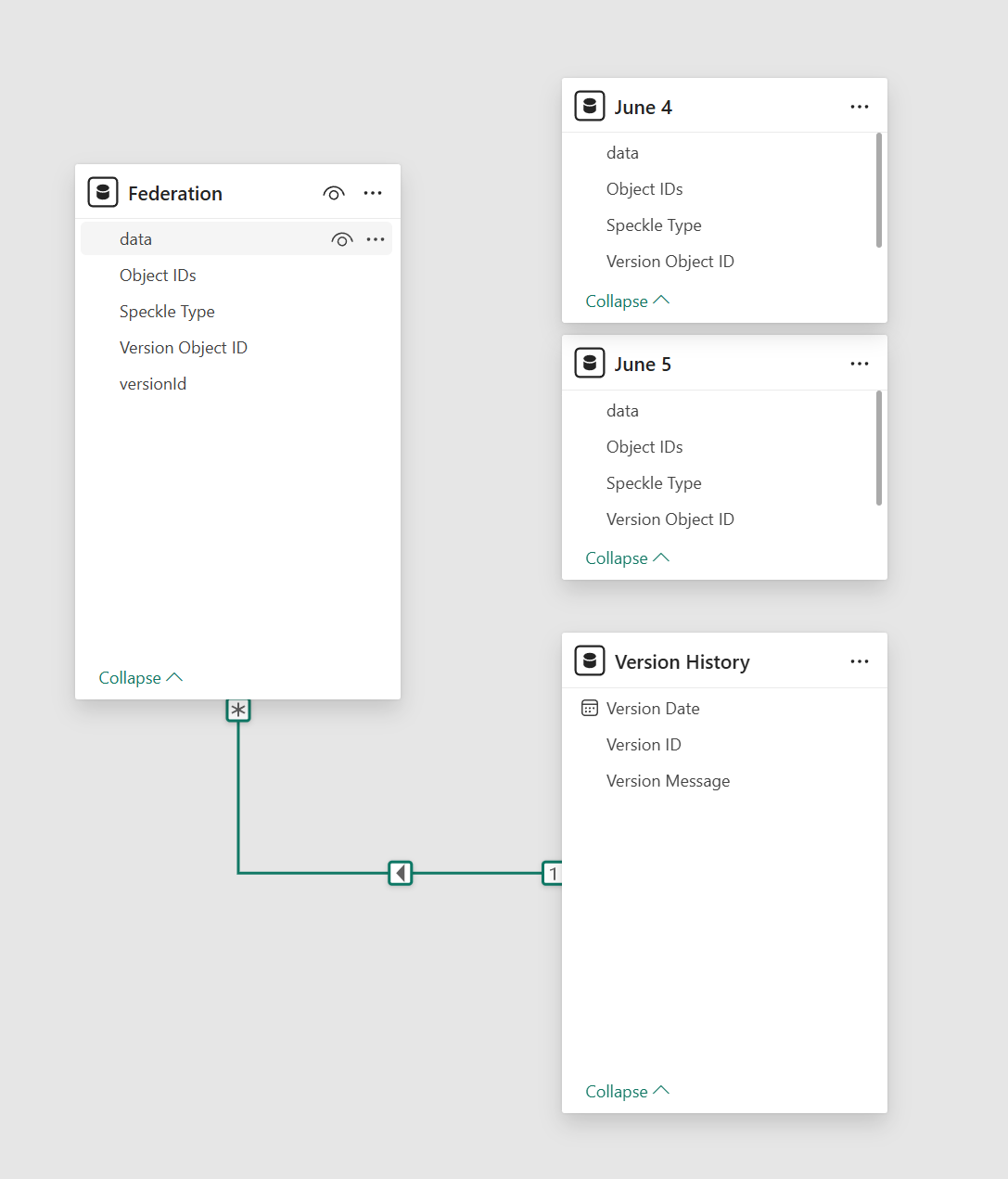
In Power BI’s Model View:
- Create a relationship from
Federation[versionId]toVersion History[Version ID] - Many-to-1
- No need to perform any merges or joins in Power Query
Step 5: Enable Filtering in the 3D Viewer
Add a slicer visual:
-
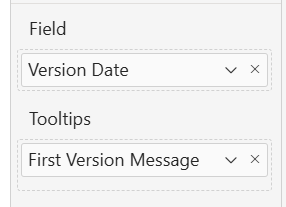
Field:
Version DatefromVersion History -
Tooltip:
Version Message -
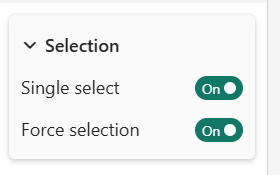
Enable:
- Single select
- Force selection
In the Speckle 3D visual:
- Set
Version Object IDto: Federation →Version Object ID - Set
Object IDsto: Federation →Object IDs
Just as you would from one of the original queries.
Now, selecting a version date in the slicer will isolate only the objects from that version in the 3D viewer.
Optional: Display Selected Version
You can also add a DAX measure to display the selected commit message or date:
Selected Version = SELECTEDVALUE('Version History'[Version Message])
This is useful for dynamic page titles or annotations.
Summary
| Step | What it does |
|---|---|
| Load versions | Brings in model snapshots with metadata |
| Federate | Merges them into a unified table |
| Add metadata | Enables context like commit messages |
| Connect tables | Drives filtering via relationships |
| Add slicer | Filters 3D view by version selected |